Skip to content
PrintNicely
Language: English

Print Google Calendar month view with all events

A month on one page, the way a wall calendar should look, without busy days losing events. Load your Google Calendar export and print.

Don’t have your file yet? How to export your Google Calendar →

1. Add your calendar

Where do I find my calendar’s link?
  1. On a computer, open Google Calendar › ⚙ › Settings.
  2. On the left, under “Settings for my calendars”, click your calendar.
  3. Scroll to “Integrate calendar” and copy “Secret address in iCal format”.
  4. Paste it above and click Load. Keep that address private: anyone who has it can see your calendar.

For calendar links that end in .ics, start with webcal://, or come from “Publish” or “Subscribe” options. Our server downloads the file and passes it straight to your browser; the link and the calendar are not stored or logged.

Or add an exported file

Drop the .zip from Google Calendar’s export, or one or more .ics files.

Your files are read in this browser only. Nothing is uploaded.

2. Choose how it prints

Layout
Design
Dates
Busy days
Show
More options
Text size
0
Filter events

To save a PDF, choose “Save as PDF” as the printer. Turn off the browser’s “Headers and footers” option for a cleaner page.

Preview

A month per page; busy days continue on a marked page.Example

Add a calendar file or try the sample to see your printout here.

Every layout is tested by printing it to PDF on Letter and A4 paper, so the preview is what you get. Your file stays in your browser.

What the month grid looks like
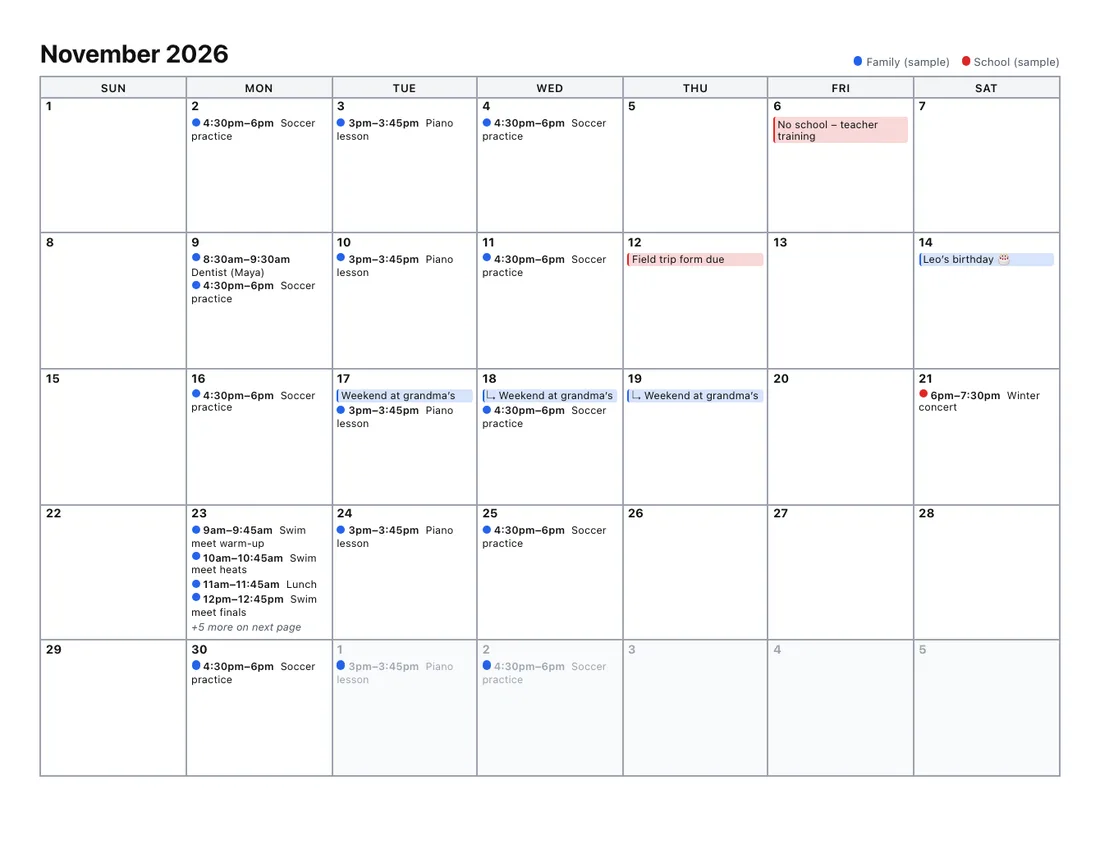
A printed month calendar for November 2026 with colored events for two calendars and a busy day showing “+5 more on next page”
Sample month in the Classic design. The busy 23rd continues on a marked page.

How busy days are handled

Google Calendar’s month print gives every day the same small box. If your Monday has nine events, some of them won’t make it onto the paper. Here you choose what happens instead:

  • One page per month (default): each day shows as many events as fit, then “+3 more on next page”. Those events are listed in full, with times, on a page titled “November 2026 — continued”.
  • Let busy weeks grow: the busy week gets taller and the month continues onto another page if needed. Everything stays inside the grid.

Make it your own

  • Designs: Classic, Minimal, Ink saver (no fills, best for home printers), Bold & clear (large type), Soft colors and Elegant. See them all in the design gallery.
  • Week numbers, weekend shading and mini calendars of the previous and next month.
  • Notes area at the bottom of the page, with ruled lines.
  • Hide weekends for a work-week calendar.
  • A title on every page, such as “The Garcia family”.

Get your Google Calendar file

On a computer, open Google Calendar, click the gear icon › Settings › Import & export › Export, then drop the downloaded .zip above. Step-by-step export guide.

Want other layouts? Try the week view, year view or list view.

Frequently asked questions

Why does Google Calendar cut events off when I print the month view?
Google prints each day of the month as a fixed-size box. When a day has more events than fit, the rest are left out of the printout. The month grid here measures each day and moves anything that doesn’t fit to a clearly marked “continued” page, so nothing disappears.
Can I keep everything inside the month grid instead?
Yes. Under “Busy days”, choose “Let busy weeks grow”. Busy weeks get taller and the month may continue onto a second page, but every event stays in its day box.
Can I print several months at once?
Yes. Pick a longer date range, for example “Next 3 months”, and each month prints on its own page. For a compact overview, choose the “Several months” layout to fit 2 or 6 months on a page.
Can I add week numbers or a notes area?
Yes. Open “More options” to add ISO or US week numbers, shade weekends, show the previous and next month as small calendars in the header, and add a lined notes area at the bottom of the page.
Does it work with several calendars?
Yes. Every calendar in Google’s export gets its own color and appears in a legend at the top of each page. You can switch calendars off or change their colors before printing.