Skip to content
PrintNicely
Language: English

Print Google Calendar week view with times

Print a week of Google Calendar with hours down the side, every event in its time slot, and nothing left out. Or switch to a week planner with full details.

Don’t have your file yet? How to export your Google Calendar →

1. Add your calendar

Where do I find my calendar’s link?
  1. On a computer, open Google Calendar › ⚙ › Settings.
  2. On the left, under “Settings for my calendars”, click your calendar.
  3. Scroll to “Integrate calendar” and copy “Secret address in iCal format”.
  4. Paste it above and click Load. Keep that address private: anyone who has it can see your calendar.

For calendar links that end in .ics, start with webcal://, or come from “Publish” or “Subscribe” options. Our server downloads the file and passes it straight to your browser; the link and the calendar are not stored or logged.

Or add an exported file

Drop the .zip from Google Calendar’s export, or one or more .ics files.

Your files are read in this browser only. Nothing is uploaded.

2. Choose how it prints

Layout
Design
Dates
Hours shown
Show
More options
Text size
0
Filter events

To save a PDF, choose “Save as PDF” as the printer. Turn off the browser’s “Headers and footers” option for a cleaner page.

Preview

Hours down the side; events sized by how long they last.Example

Add a calendar file or try the sample to see your printout here.

Every layout is tested by printing it to PDF on Letter and A4 paper, so the preview is what you get. Your file stays in your browser.

Two week layouts

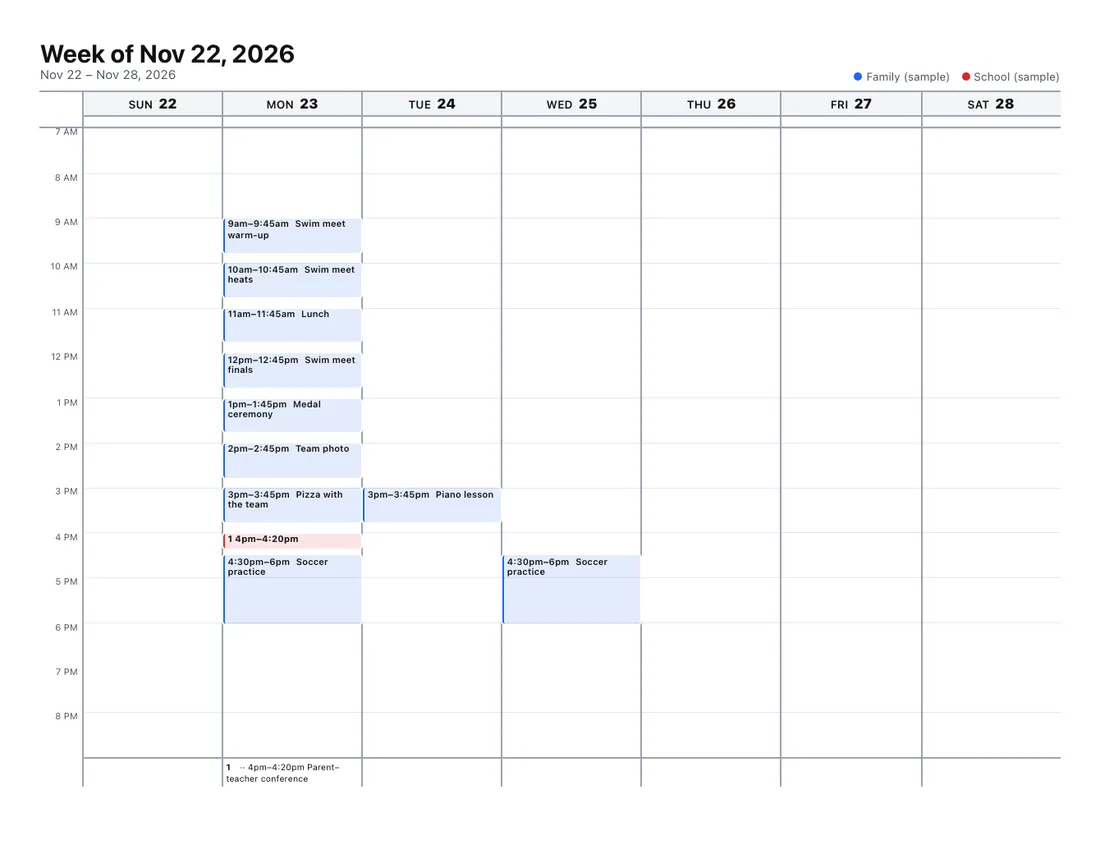
A printed vertical week with hours from 7am to 9pm and events as colored blocks, including a busy Monday with nine events
Vertical week: hours down the side, events sized by how long they last.
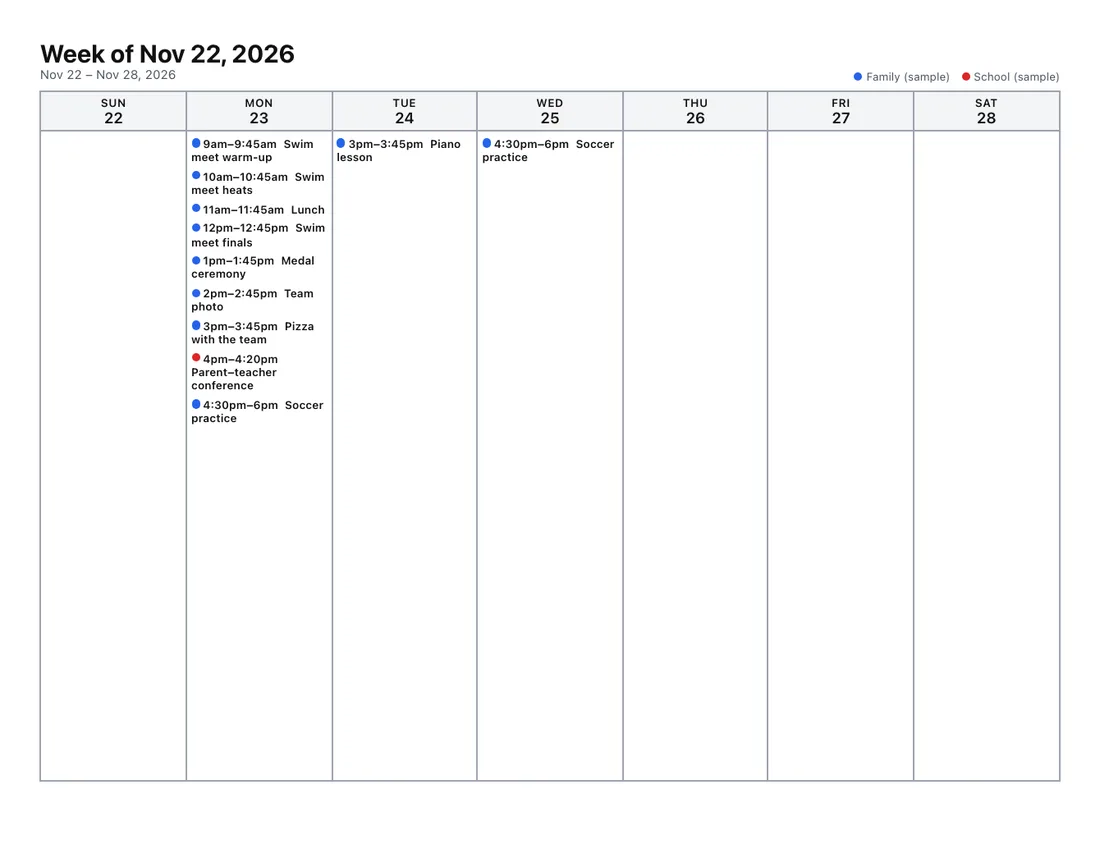
A printed week planner with one column per day listing times, titles and descriptions
Week planner: one column per day, with descriptions and places.

Why not Google Calendar’s own week print?

Google can print the week view, but long event titles get cut short, descriptions aren’t included, and it only prints calendars from one Google account. Here:

  • No event is lost. Events outside the hours shown go under “Earlier” or “Later”.
  • Short events stay readable. Titles that can’t fit get a number and are printed in full below.
  • Choose the hours you care about, such as 7:00 to 21:00.
  • Combine calendars from different accounts, each in its own color.
  • Add a notes area, week numbers, or hide the weekend.

Get your Google Calendar file

On a computer: Google Calendar › gear icon › Settings › Import & export › Export. Drop the .zip above. Full export guide.

Also see: month view, list view and year view.

Frequently asked questions

How do I print Google Calendar week view with times?
Choose the “Vertical week” layout. Hours run down the side and each event is a block as long as the event itself, like Google Calendar’s week view on screen, with the start and end times printed in each block.
What happens to events outside the hours shown?
Nothing is dropped. Events before the first hour are listed under “Earlier” at the top of the day, and events after the last hour under “Later”. You can change the hours shown, for example 6:00 to 22:00.
What if an event is too short for its title?
Short events that can’t fit their title get a number in their time slot, and the full time and title are printed under that day.
Can I print the week with descriptions and locations?
Yes. Use the “Week planner” layout: one column per day with times, titles, locations, descriptions and guests.
Can I print two weeks on one page?
Yes. The “Two weeks” layout prints two weeks per page with large day boxes.